Around views and navigation
One Base can do three jobs: draw the notes around the one you are reading, open a note inside its whole collection, and follow you as you switch notes. Set it up once, under Open in map, and all three use it.
A Base is an Obsidian file that collects the notes and files you filter for, and shows them as a table or a map.
Show only the notes around the current note
Section titled “Show only the notes around the current note”In Advanced Maps settings, open Open in map and pick your reusable Base under
Base file. Then run Insert a map of the notes around this one. The command
adds an Around map view to that Base if the Base does not have one, and inserts:
![[places.base#Around]]The Around view keeps only three kinds of notes:
- the note the embed sits in;
- the notes it links to;
- the notes that link back to it.
Tracks and photos linked from those notes are drawn as usual. A trip index can be as short as:
# West Lake weekend
[[Broken Bridge]][[Leifeng Pagoda]][[Lingyin Temple]][[weekend.gpx]]
![[places.base#Around]]
weekend.gpx has no !, so the note shows one Around map and the route is drawn
on it. Adding the ! would put a second, separate map under the link.
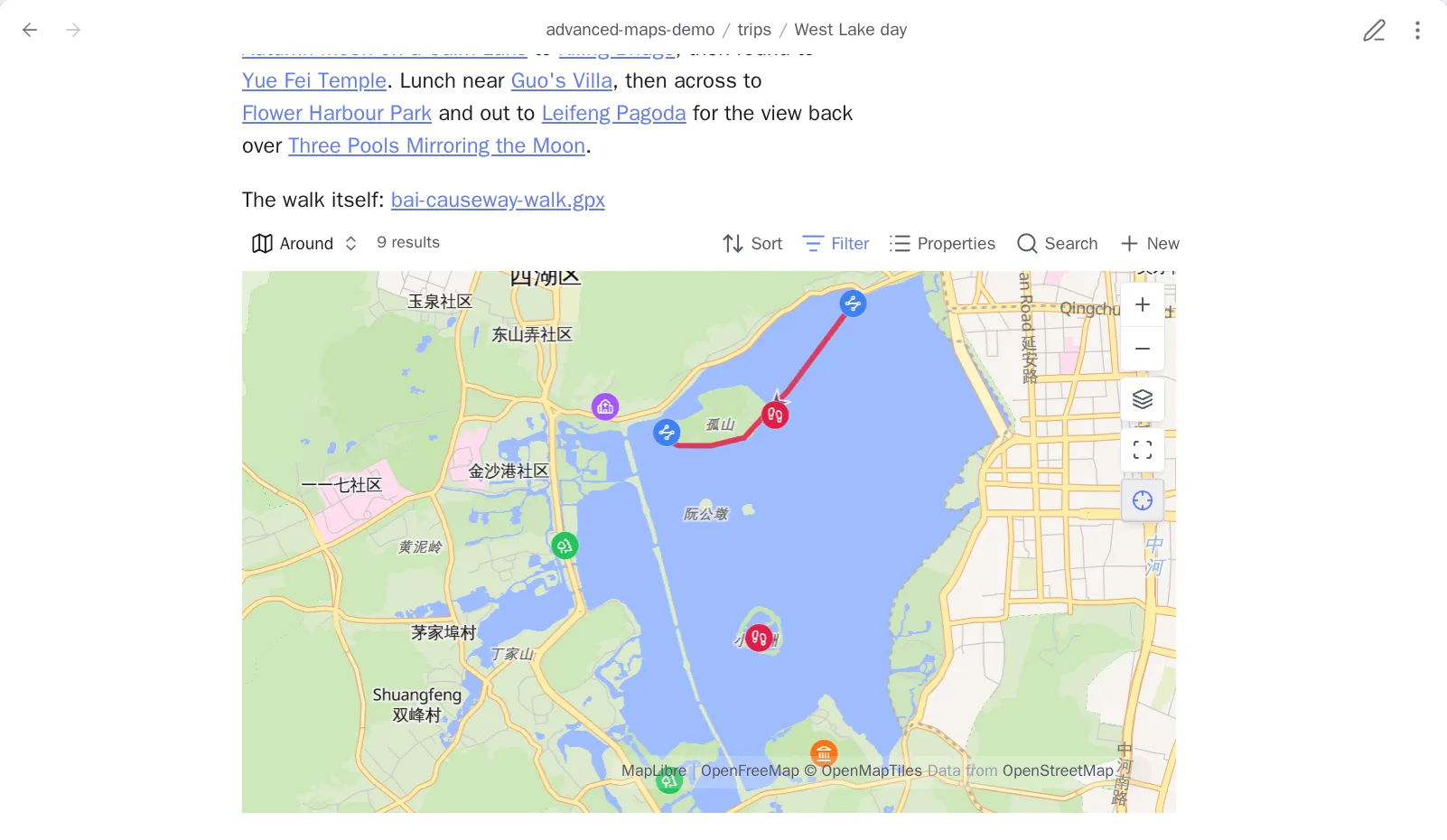
The Around view keeps the notes your Base already matched. A linked note that the Base’s filter leaves out stays left out. The embed stores the view name, so if you rename the view you have to update the embeds that name it.
Turn Insert a map of nearby notes off under settings → Open in map and the editor’s right-click menu carries no item of this plugin’s, and the command leaves the command palette. Maps you already inserted keep drawing. What the switch removes is the offer to write another one.
Reuse one Base everywhere
Section titled “Reuse one Base everywhere”Set Base file and View name once, under Advanced Maps settings → Open in map. The same Base then powers Open in map, Follow active note, and Around embeds.
| Question | Decided by |
|---|---|
| Which notes or direct photo files participate? | Base filters |
| What does a note marker look like? | Base formulas and the map view’s Marker icon/Marker color options |
| Where is a note’s coordinate? | The map view’s Marker coordinates property |
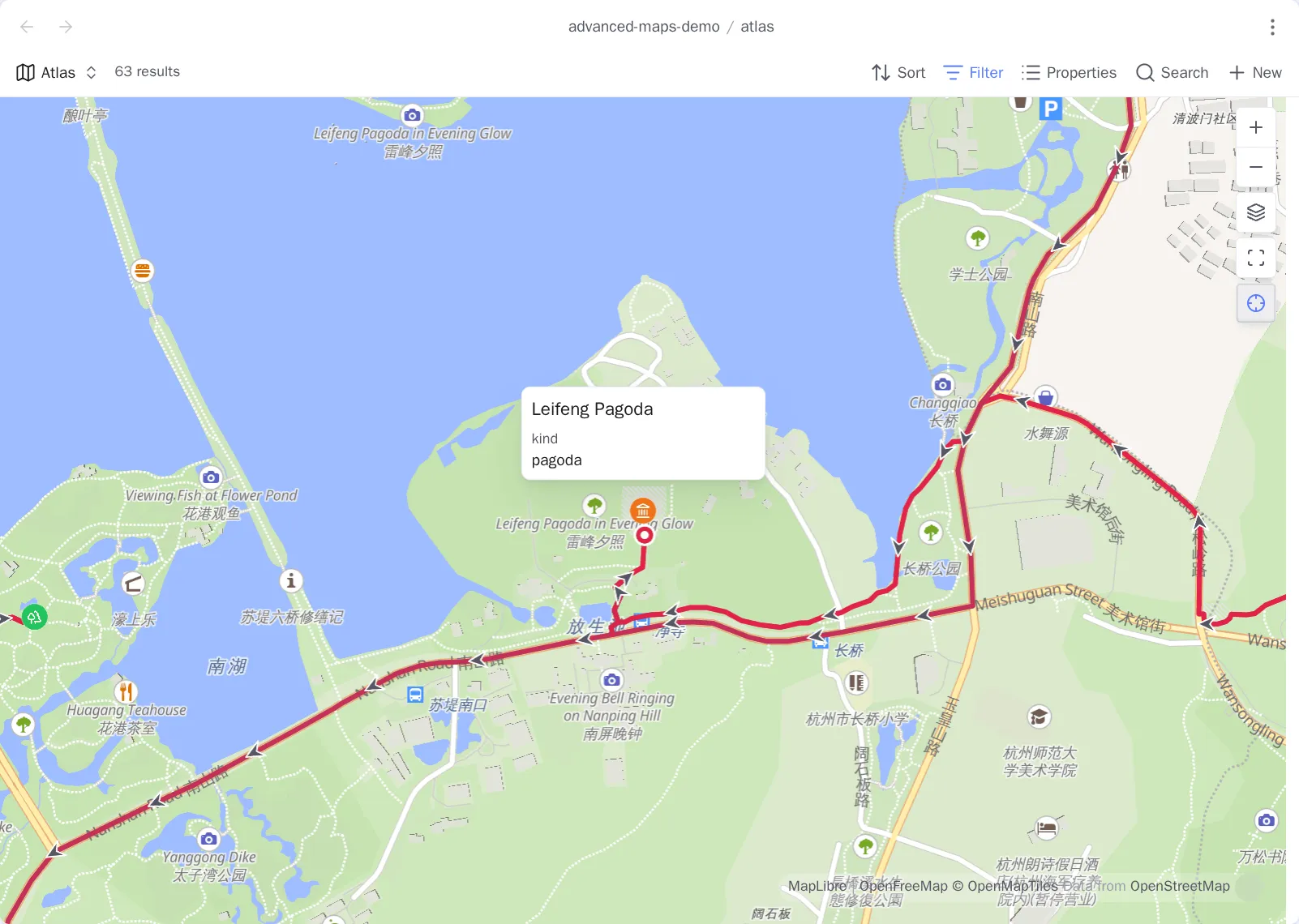
Open the current note in that map
Section titled “Open the current note in that map”Notes carrying the coordinate property — coords by default — get an Open in
map item in their menu. It opens the Base you configured, moves the map to that
note, and opens its popup.
Open in chooses where: a normal tab opens the Base file itself and keeps any view option you change there, while a pop-up window leaves your layout alone but has nowhere to write a change back to.
Turn Open a note in map off on the same settings page and no note carries the item, and the command leaves the palette with it. The Base file stays configured, because the map of nearby notes uses the same one.
Follow the active note
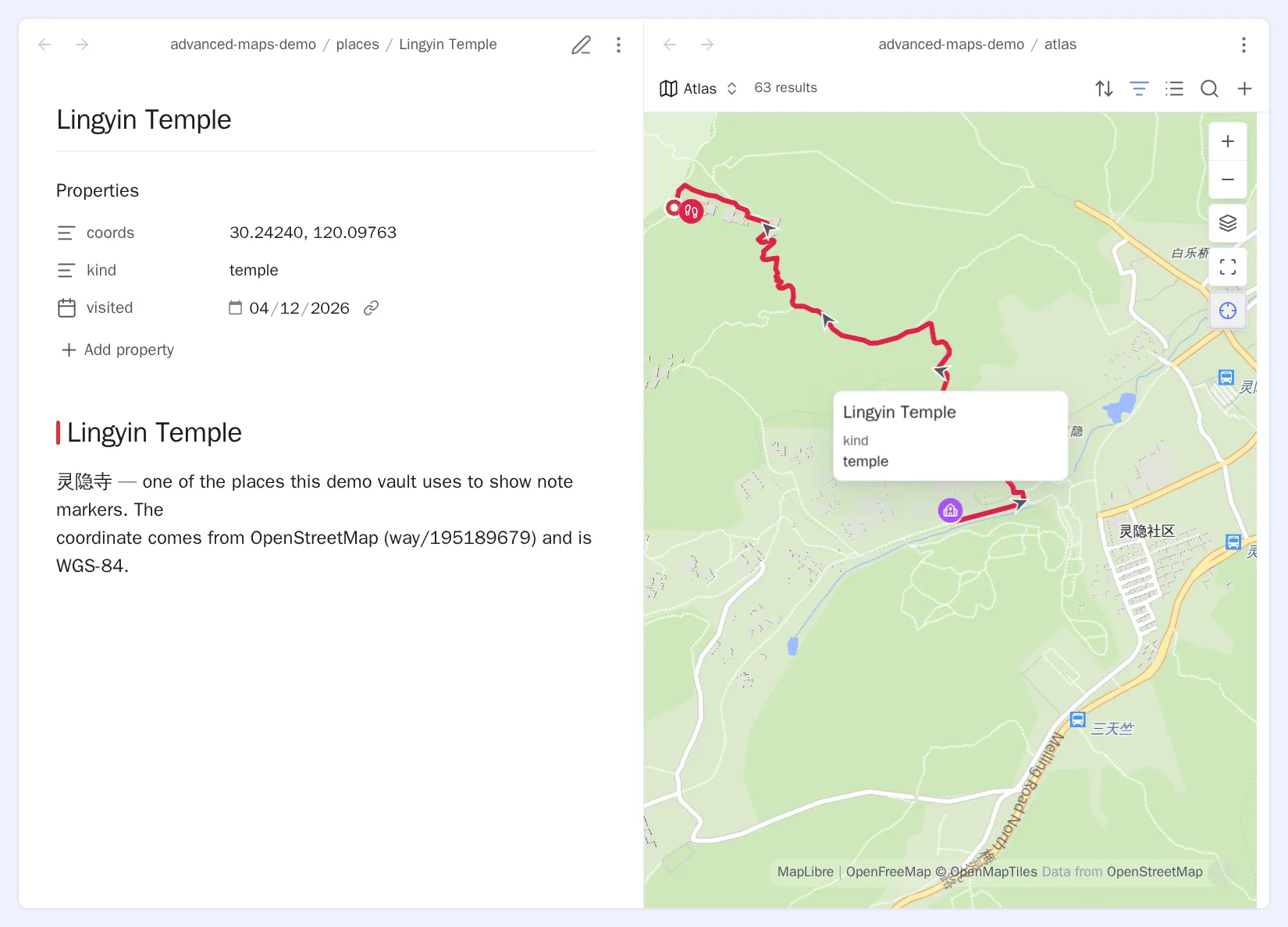
Section titled “Follow the active note”Select the ⊹ control next to zoom-to-fit and the map follows the notes you switch between. It keeps the current zoom level and does not change the Base’s query.
New maps start following, under settings → Map buttons, decides which way that button points on a map that has just opened. The choice is not remembered after the map closes. Turn Follow the active note off on the same page and the button is removed from every open map, not just the next one.
Measure a distance
Section titled “Measure a distance”Select the ruler control under ⊹ and the map becomes a measuring surface. Click — or tap, on a phone — to drop a point. Each point after the first is labelled with its distance from the start. On a desktop, a dashed line follows your pointer with the running total, and a readout opens beside the ruler showing the points you have actually placed. A phone has no pointer to lead that dashed line, so the readout and the labels are all it shows you.
Take back the last point with ↺ or Backspace. Select the ruler again and the readout folds away, leaving the measurement on the map. Select it once more to bring the readout back, showing whatever you have measured by then. You can keep placing points while it is folded.
Put the tape away with ✕ or Escape. Nothing is written to any note, and the measurement is gone once you stop.
Turn Measure distance off under settings → Map buttons and the ruler control goes with it.
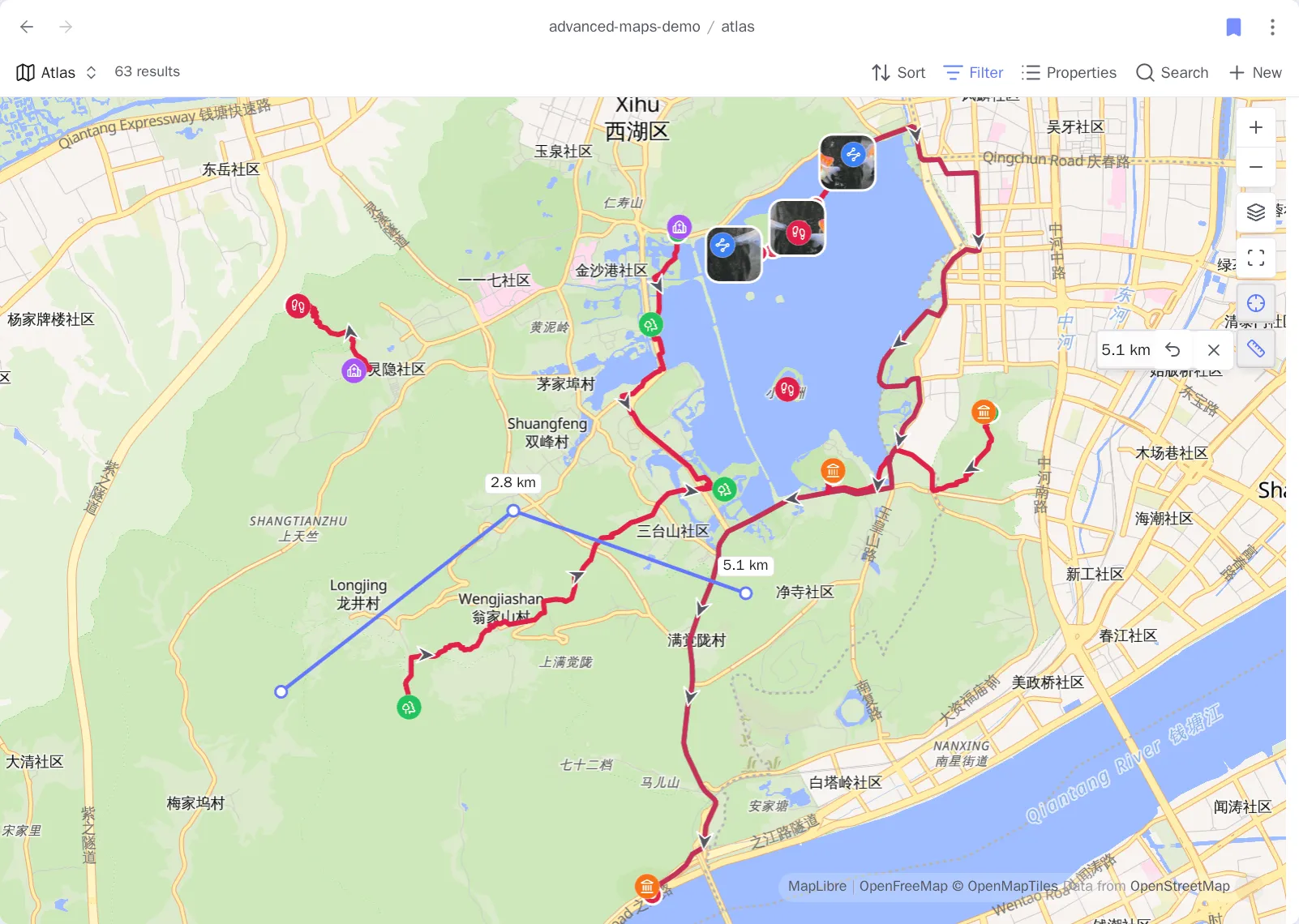
While the tape is out, clicks belong to it. Clicking a pin adds a point instead of opening that note, and no popup covers the ground you are measuring across. A double-click places two points instead of zooming in. Taps work the same way: a double-tap places two points rather than zooming.
Bring the pointer near something already on the map and a ring appears on it: a note’s pin, a route’s waypoint or its start and end pin, a photo’s position, or a point you placed earlier in the same measurement. Click and your point lands on that thing’s own coordinate instead of on the pixel you hit. That is what makes “how far is this note from that photo” exact, and what lets a route close on the place it started. The point you placed last is never snapped to, because a leg from a point to itself measures nothing. Hold Alt while you point and click to skip all of it and measure the bare ground.

On a phone the point still lands on the thing’s own coordinate, but there is no ring to aim by, because the ring is drawn by hovering. Put your tap on the marker, waypoint, or photo itself rather than near it. Alt has no equivalent there, so to measure the ground beside something, tap further away from it.
The tape measures straight-line distance between the places you clicked. That is not the distance along a road or a path. For that, save the route as a track file and read its statistics. On a Chinese basemap the tape measures the real coordinates behind the shifted map, so your measurement does not change when you switch the background under it.
Pins at the same coordinate
Section titled “Pins at the same coordinate”At close zoom, notes that share an exact coordinate fan out into a ring, so you can pick out and open each marker by pointer or by tap. Zoom out and they close back to the shared point they really have. Nothing is written to the notes, and copied coordinates stay the same. Fan out overlapping pins turns this off.